

Why Is My Laptop So Slow or Why Does a Laptop That Used to Be Fast Become So Slow?
You switch on your laptop, make a cup of tea, come back—and it is still loading.
You click Google Chrome.
Nothing.
You open Microsoft Word.
The laptop freezes.
You have an assignment to submit, a report to finish, an online meeting starting in 10 minutes or customers waiting for you to respond.
And eventually you ask yourself:
“Is it time to buy another laptop?”
Not necessarily.
A slow laptop is one of the most common computer problems people experience, but a slow computer does not automatically mean that the computer needs to be replaced.
For many students, professionals, entrepreneurs, teachers and families in Kenya, the problem may be something much simpler: limited storage, too many programs, insufficient RAM, an old hard drive, overheating, malware or software problems.
Before you spend money on a new computer, let’s look at what could actually be happening.
1. Your Laptop May Be Running Out of Storage
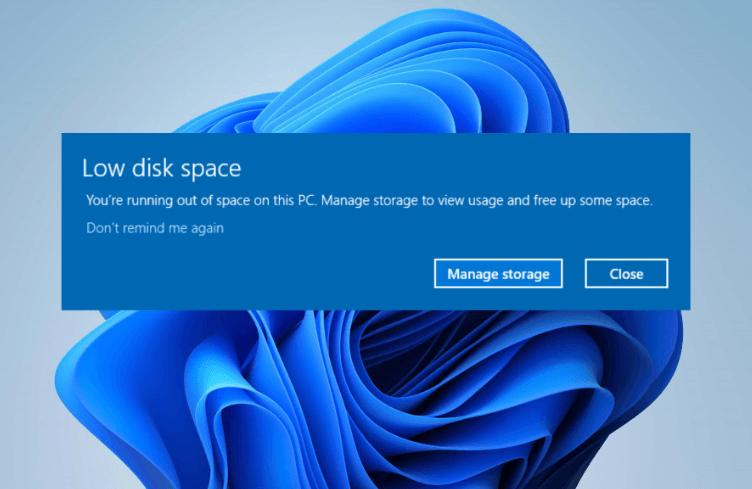
One of the easiest things to check is your available storage.
If your main Windows drive is almost full, your computer may struggle to manage temporary files, updates and other operations.
This often happens without the owner realizing it.
Your Downloads folder might contain hundreds of PDFs. Your phone backups may have filled the computer with photos and videos. You may have installed programs you no longer use.
Check your storage
On Windows, go to:
Settings → System → Storage
Look at how much space is available on your main drive.
You can then remove files you no longer need.
Pay particular attention to:
- Downloads
- Large videos
- Duplicate photos
- Old installation files
- Recycle Bin
- Unused applications
Don’t delete Windows system files simply because they look unfamiliar.
If your computer contains many important files, back them up before doing major cleanup.
2. Too Many Programs May Be Starting With Windows
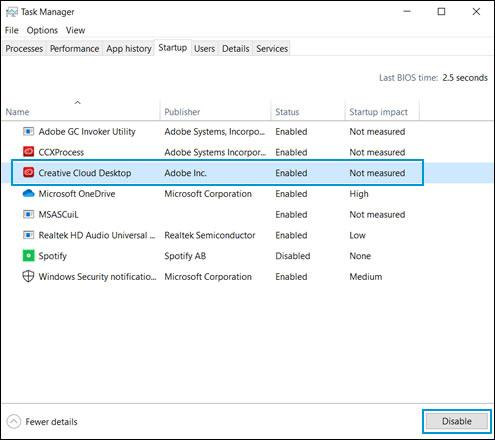
Have you noticed that your laptop takes several minutes before it is ready to use?
One possible reason is the number of applications starting automatically.
Over time, you may install Microsoft Teams, OneDrive, Adobe applications, Spotify, WhatsApp and many other programs.
Some configure themselves to start whenever Windows starts.
That means your laptop is already doing a lot of work before you even open Chrome.
How to check
Press:
Ctrl + Shift + Esc
Then select:
Startup apps
Look through the list.
If an application doesn’t need to start every time you switch on the computer, you can consider disabling its startup behaviour.
This doesn’t normally uninstall the application.
It simply prevents it from automatically running at startup.
3. Your Laptop May Not Have Enough RAM
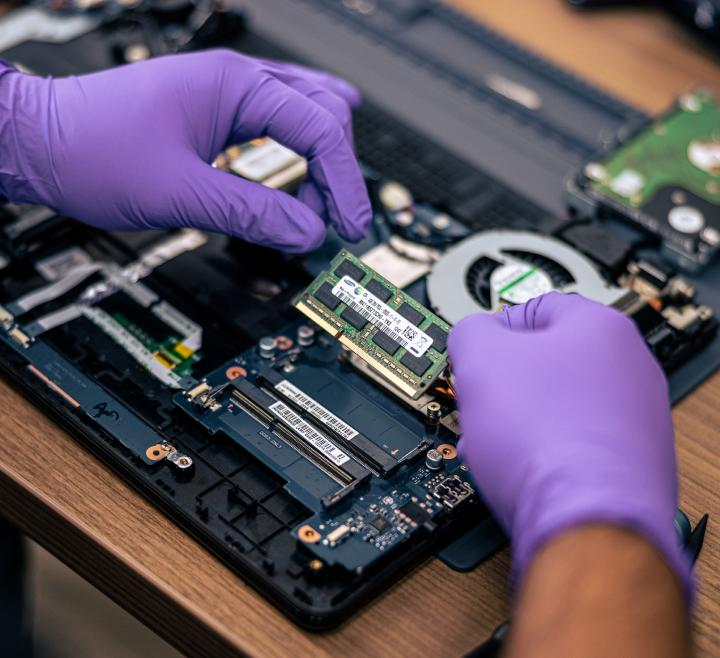
RAM is the computer’s short-term working memory.
The more applications you run at the same time, the more memory your computer may need.
Think about a typical working session.
You might have Chrome open with 15 tabs, Microsoft Word, Excel, WhatsApp, Teams and a PDF document.
If your computer has limited RAM, multitasking can become difficult.
For many everyday users, 8GB RAM can provide a reasonable starting point. People doing heavier multitasking or professional work may benefit from 16GB or more, depending on their applications.
But don’t simply buy RAM because somebody tells you:
“Your laptop needs more RAM.”
First check whether the laptop actually supports an upgrade.
Some laptops have upgradeable RAM. Others have memory soldered directly onto the motherboard.
4. You May Still Be Using an Old HDD
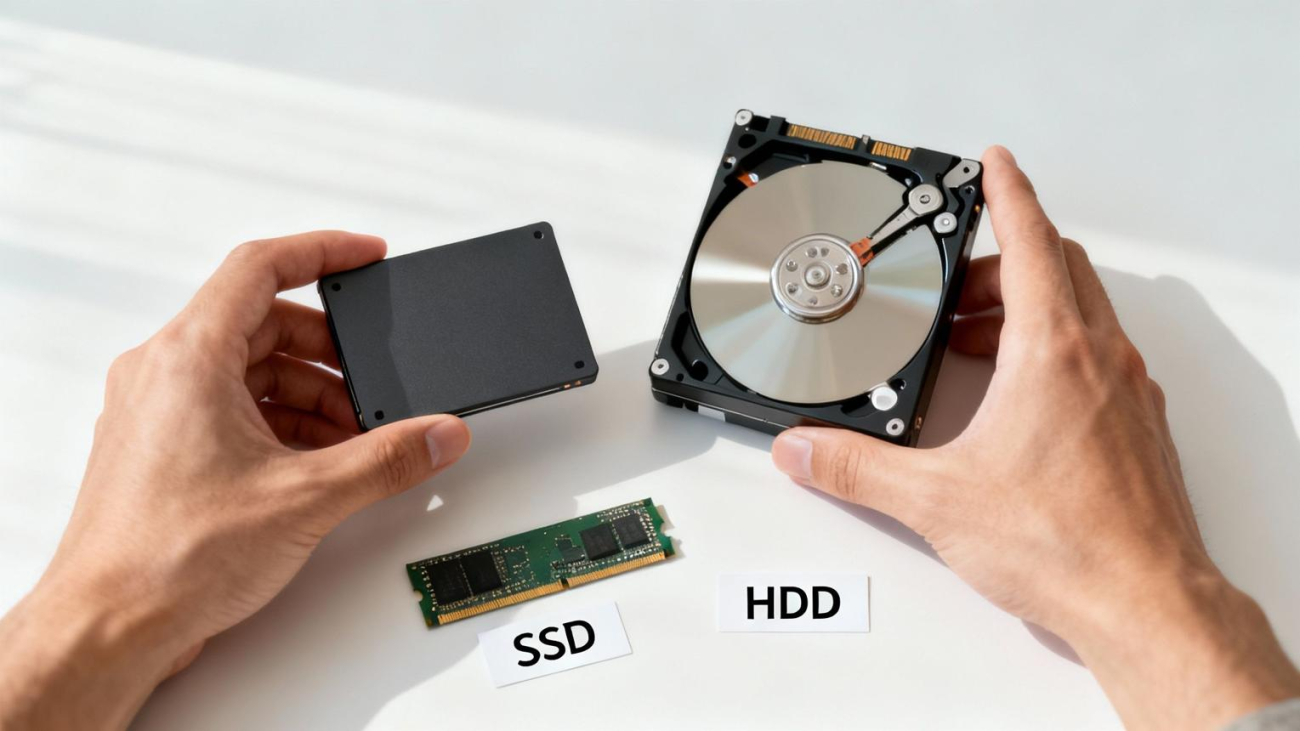
This is one of the most important things to investigate when dealing with an older laptop.
Traditional hard disk drives, or HDDs, use mechanical moving parts.
SSDs use flash storage and generally provide much faster access to data.
If your laptop still has an old HDD, moving Windows and your applications to a compatible SSD can make the computer feel dramatically more responsive.
You may notice faster:
- Startup
- Application loading
- File access
- Searching
- General Windows operation
This is one reason we encourage customers to diagnose an old laptop before replacing it.
An SSD upgrade can sometimes transform the experience of an older machine.
5. Your Laptop Could Be Overheating
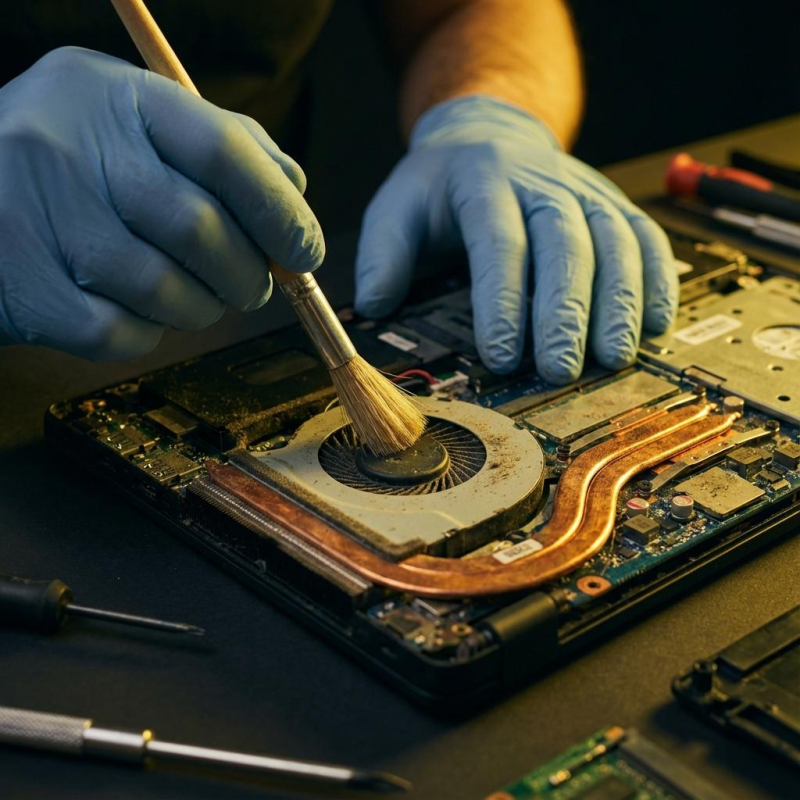
Does your laptop become slower after you’ve been using it for some time?
Does the fan run loudly?
Does the laptop become unusually hot?
Overheating could be contributing to the problem.
Dust can accumulate inside the cooling system. Air vents can become blocked, while using a laptop on a bed or blanket can restrict airflow.
When temperatures become excessive, computer hardware can reduce performance as part of its thermal management.
If your laptop has become unusually hot, don’t ignore it.
A technician can inspect the cooling system, clean accumulated dust and check whether the fan and thermal components are functioning properly.
6. Malware Could Be Using Your Computer in the Background
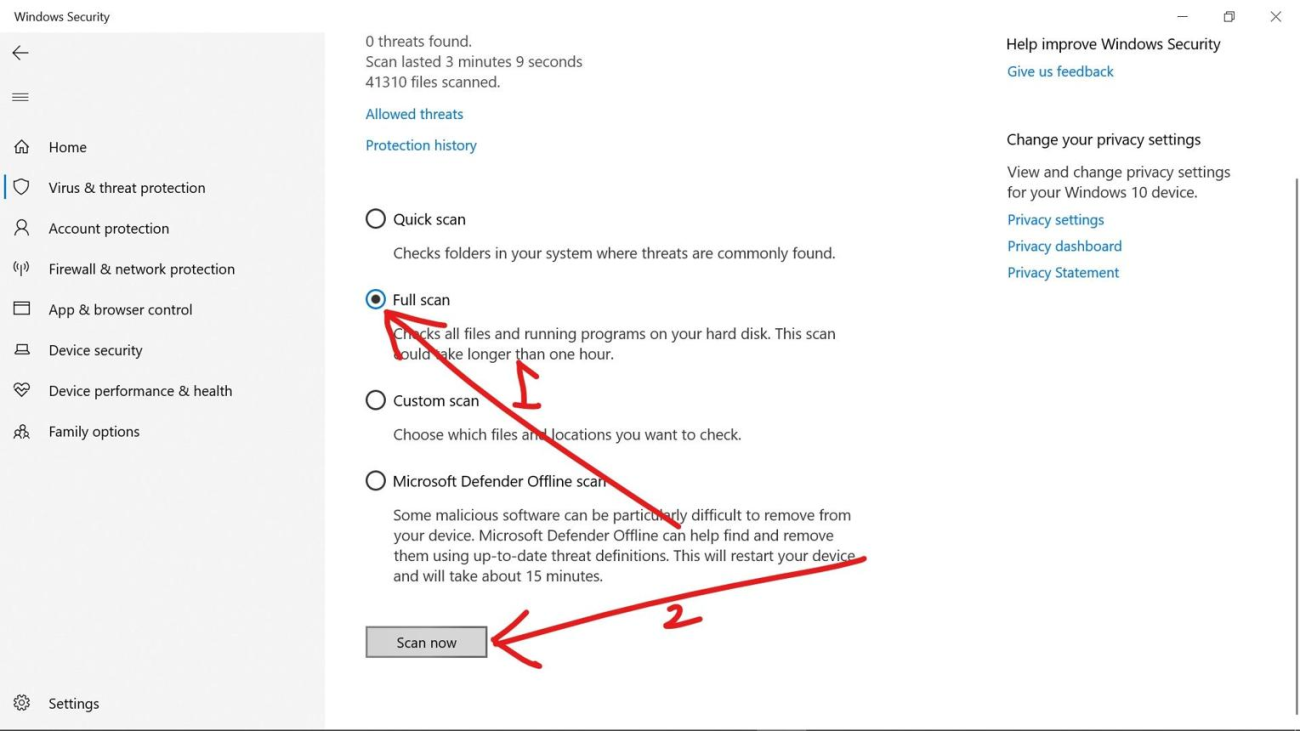
Not every slow laptop has a hardware problem.
Malware and unwanted software can consume processor power, memory and network resources.
You may notice:
- Strange pop-ups
- Browser redirects
- Unknown applications
- Unexpected advertisements
- High CPU usage
- Unusual network activity
Windows includes Windows Security, which can scan your computer for threats.
Be particularly careful when downloading cracked software, unofficial activators or applications from unknown websites.
Something advertised as a “free” program may come with software you didn’t intend to install.
7. Windows or Your Drivers May Need Attention
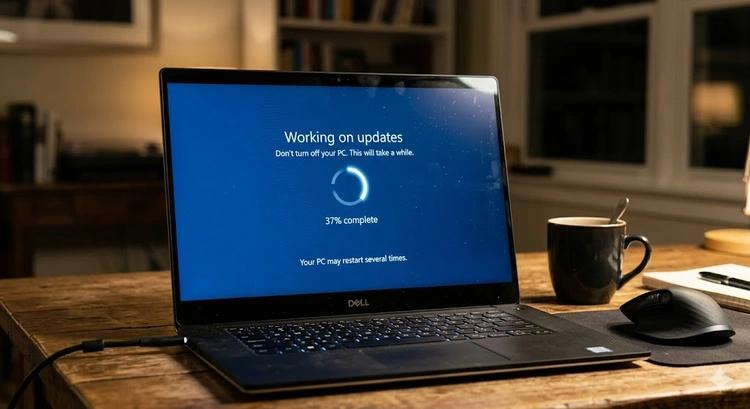
Software problems can also affect the way your laptop behaves.
Check:
Settings → Windows Update
Install appropriate updates and restart the computer when required.
You should also make sure important drivers are functioning properly, particularly drivers for:
Avoid downloading random driver packages from suspicious websites.
Use Windows Update or the computer manufacturer’s official support resources where possible.
8. One Application Could Be Using Too Many Resources
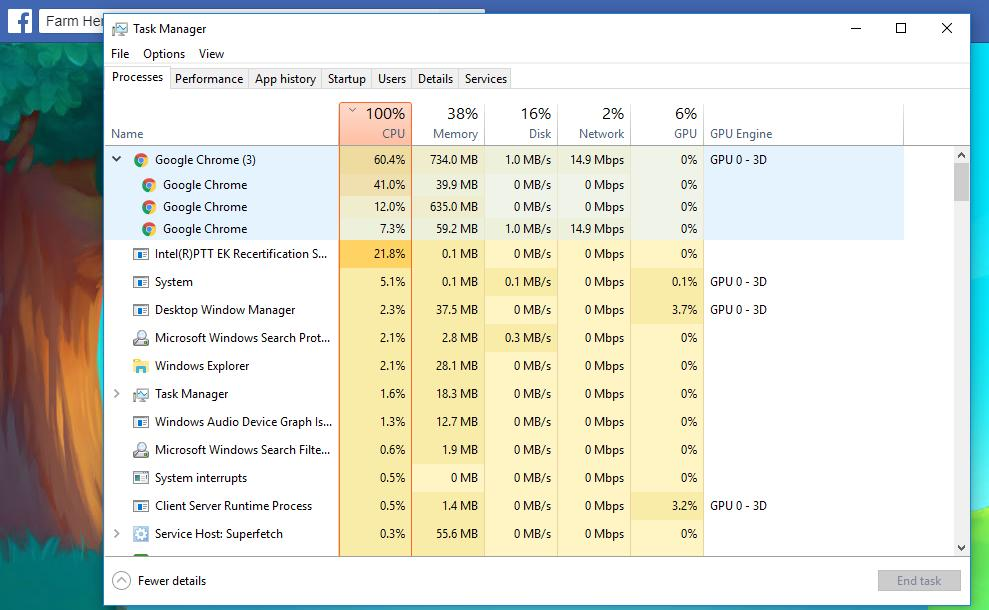
Sometimes your laptop isn’t generally slow.
One application may simply be consuming an unusually large amount of resources.
Open Task Manager with:
Ctrl + Shift + Esc
Check:
CPU → Memory → Disk
If one application is consistently consuming an unusually high percentage of resources, investigate it.
A browser with many open tabs can use considerable memory.
Video-editing software, engineering applications and other demanding programs can also place substantial loads on a computer.
Don’t terminate unfamiliar Windows processes without understanding what they do.
9. Your Laptop May Simply Be Too Old for What You Now Do

Sometimes the laptop isn’t faulty.
Your needs have changed.
Perhaps you bought your laptop when you were a student and mainly used it for Word, PDFs and browsing.
Now you’re an engineer using CAD software.
Or perhaps you started your business with simple Excel spreadsheets and now you are working with accounting software, databases, large files and video content.
The laptop that was sufficient before may no longer have enough processing power, memory or graphics performance for your current workload.
This is where a proper assessment becomes important.
10. Consider an Upgrade Before Buying Another Computer
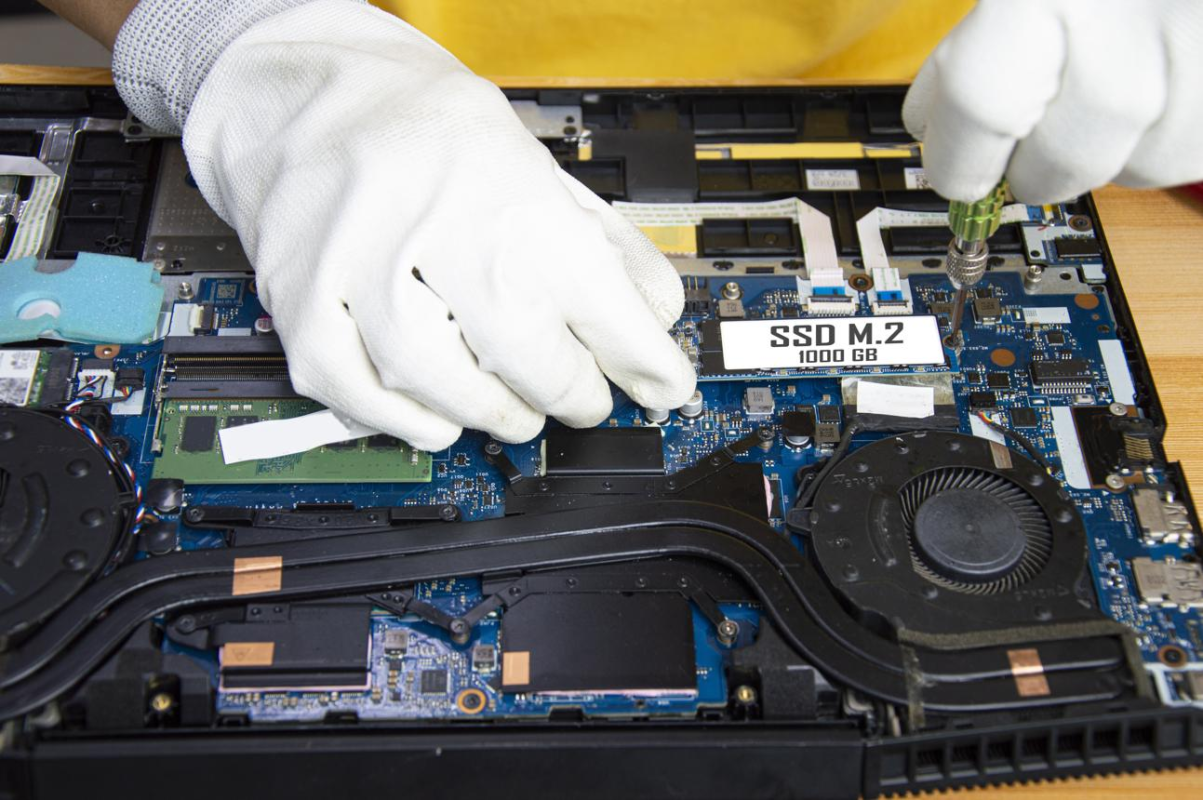
After checking all these possibilities, you may discover that your laptop doesn’t need to be replaced.
It may need an upgrade.
Depending on the laptop, possible solutions include:
- SSD upgrade
- RAM upgrade
- Internal cleaning
- Windows maintenance
- Storage replacement
- Battery replacement
- Malware removal
- Hardware repair
However, not every laptop should be upgraded.
If the processor is too old, the motherboard is failing or the computer cannot support the performance you need, buying another machine may make more sense.
The important thing is to diagnose before spending money.
So, Should You Buy a New Laptop?
Not necessarily.
A slow laptop could need anything from a simple cleanup to an SSD upgrade—or it could genuinely be time for a replacement.
The mistake is assuming the answer before finding the cause.
Before spending your money, ask:
What exactly is making my laptop slow?
Once you know the answer, the solution becomes much clearer.
For a student, that might mean adding RAM or an SSD.
For a professional, it might mean upgrading to a machine with better specifications.
For a business, it could mean replacing several ageing computers at the same time.
And for a parent buying a computer for a child, it may simply mean choosing a machine that matches what the child will actually use it for.
Frequently Asked Questions
Why is my laptop suddenly so slow?
Common possibilities include low storage, excessive startup applications, insufficient RAM, an old HDD, overheating, malware, software issues or failing hardware.
Does an SSD make a laptop faster?
If the laptop uses a traditional HDD, upgrading to a compatible SSD can significantly improve startup and application-loading responsiveness.
Is 8GB RAM enough?
It can be sufficient for many everyday tasks, including browsing, Microsoft Office and online learning. Heavier professional workloads may require more.
Should I upgrade RAM or SSD first?
It depends on the actual limitation. If the computer has an HDD, an SSD upgrade may have a major effect on responsiveness. If RAM is consistently exhausted during multitasking, additional compatible RAM may be appropriate.
How can I make my laptop faster without buying a new one?
Start by checking storage, startup applications, RAM usage, malware, overheating, Windows updates and whether the computer uses an HDD or SSD.
How do I know if my laptop needs professional repair?
If it overheats, shuts down unexpectedly, freezes frequently, has unusual noises, won’t boot properly or remains slow after basic troubleshooting, professional diagnosis can help identify the underlying problem.
Need Help With a Slow Laptop?
Before you spend money on a new computer, let’s find out what’s actually wrong with the one you already have.
Opulent Computer Systems helps students, professionals, businesses, schools and individuals with computer troubleshooting, laptop upgrades, repairs, SSD installations, RAM upgrades and computer recommendations.
Visit Us
Opulent Computer Systems
Iconic Business Plaza
4th Floor, Shop J7
Call / WhatsApp
070607000
Diagnose first. Buy second.