


How to Speed Up a Slow Laptop Without Buying a New One. There is a point when a slow laptop stops being a small inconvenience and starts affecting your life.
You are trying to submit an assignment, but the laptop takes several minutes to start.
You are preparing an office report, but every time you switch between Excel and your browser, everything freezes.
You are running a business, and your computer takes so long to open applications that simple tasks start taking twice as long.
And then you start looking at advertisements for new laptops.
But before you spend KSh 30,000, KSh 50,000, KSh 80,000 or more on another computer, there are several things you can do.
Your laptop may not need to be replaced. It may simply need attention.
In this guide, we’ll look at practical ways to make a slow laptop faster and help you determine when an upgrade makes more sense than buying a completely new machine.
1. Start by Finding Out What Is Actually Making Your Laptop Slow and How to Speed Up a Slow Laptop
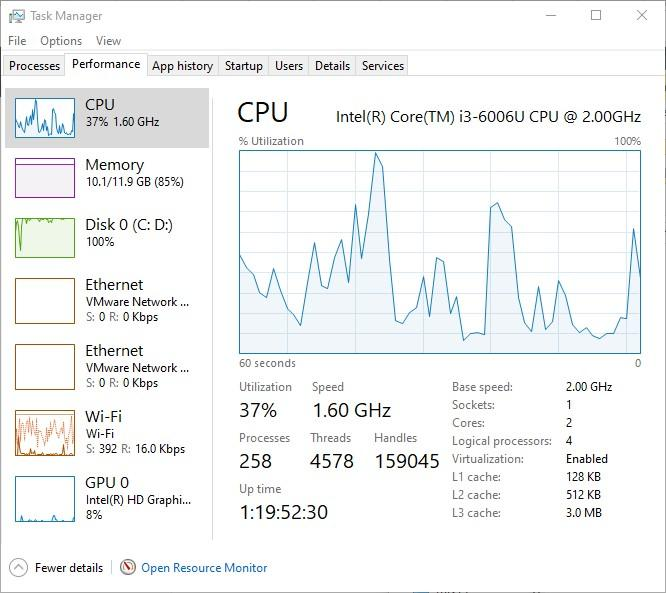
Before changing anything, diagnose the problem.
This is where many people make a mistake.
Someone tells you:
“Just add RAM.”
Another person says:
“You need an SSD.”
Someone else says:
“Buy another laptop.”
None of these recommendations should come before understanding the actual problem.
Windows Task Manager can give you useful information.
Press:
Ctrl + Shift + Esc
Then look at the Performance section.
Pay attention to:
- CPU
- Memory
- Disk
- Network
If your memory is constantly close to full, RAM may be limiting your multitasking.
If your disk usage is constantly very high and the laptop uses an old HDD, the storage drive may be contributing to the problem.
If the CPU is constantly running at very high usage, an application or background process may be responsible.
Diagnosis comes before spending.
2. Free Up Space on Your Laptop and How to Speed Up a Slow Laptop
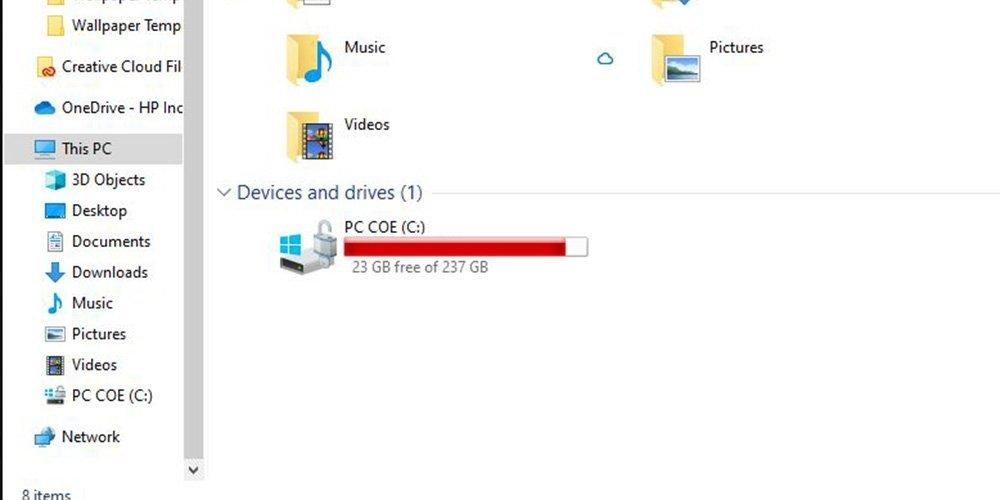
A computer filled with unnecessary files can become difficult to manage.
Start by checking your storage.
Go to:
Settings → System → Storage
Look at your main Windows drive.
If it is almost full, start cleaning it up.
You can remove things such as:
- Old downloads
- Temporary files
- Duplicate photos
- Large videos you no longer need
- Old installation files
- Applications you don’t use
- Files sitting in the Recycle Bin
For important documents, don’t simply delete them.
Back them up first.
You can use an external drive or an appropriate cloud-storage solution.
A good storage-management habit is to periodically review what is taking up space instead of waiting until Windows starts warning you that the drive is full.
3. Stop Unnecessary Programs From Starting Automatically
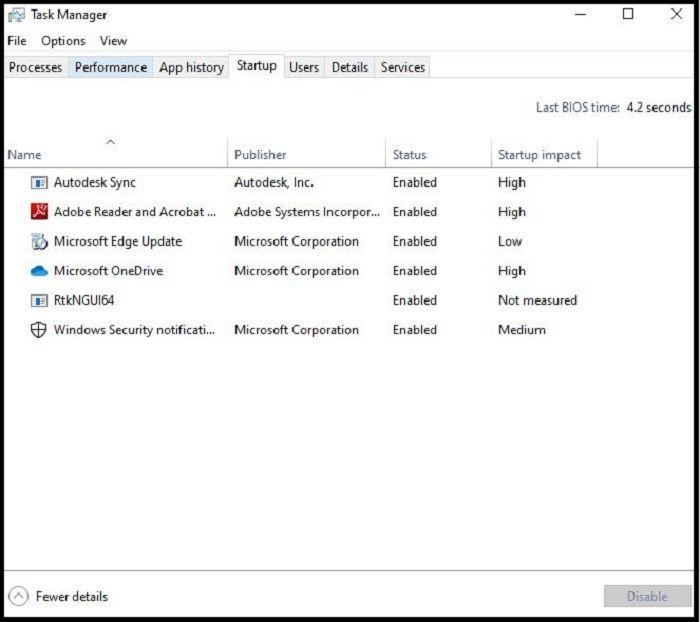
Your laptop may be working hard before you have even opened your first application.
Many programs configure themselves to start automatically with Windows.
Over time, the list can become surprisingly long.
Press:
Ctrl + Shift + Esc
Open Startup apps.
Look at the programs listed there.
If you don’t need a particular program to launch every time you turn on the laptop, you can consider disabling it.
This is particularly useful for applications you use occasionally.
Remember: disabling startup does not normally uninstall the program.
It simply prevents it from automatically launching when Windows starts.
4. Reduce the Number of Browser Tabs
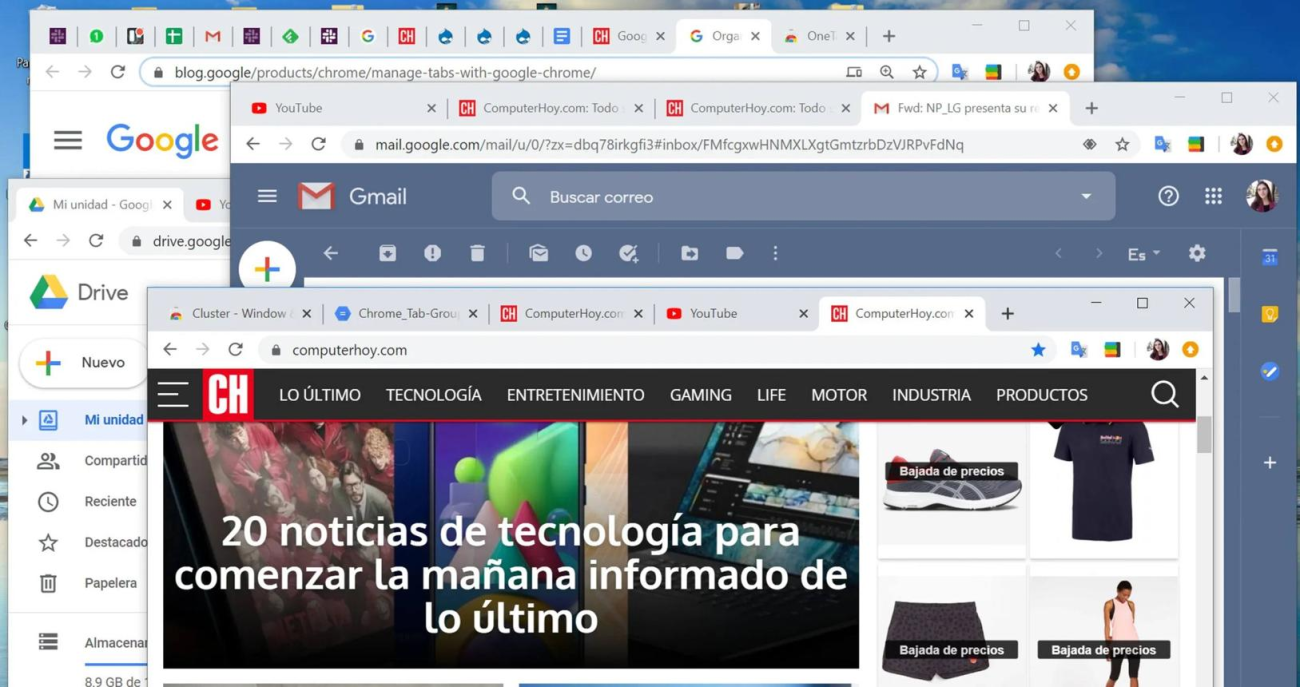
Your browser can become one of the biggest consumers of memory.
You may have started with three tabs.
Then you opened another five.
Then you searched for something else.
Before long, you have 25 tabs open.
If your laptop has limited RAM, this can affect performance.
Close tabs you don’t need.
You can also bookmark important pages rather than keeping everything open indefinitely.
If you regularly need many browser tabs for work, this is another reason to consider whether your laptop has enough RAM.
5. Uninstall Programs You No Longer Use
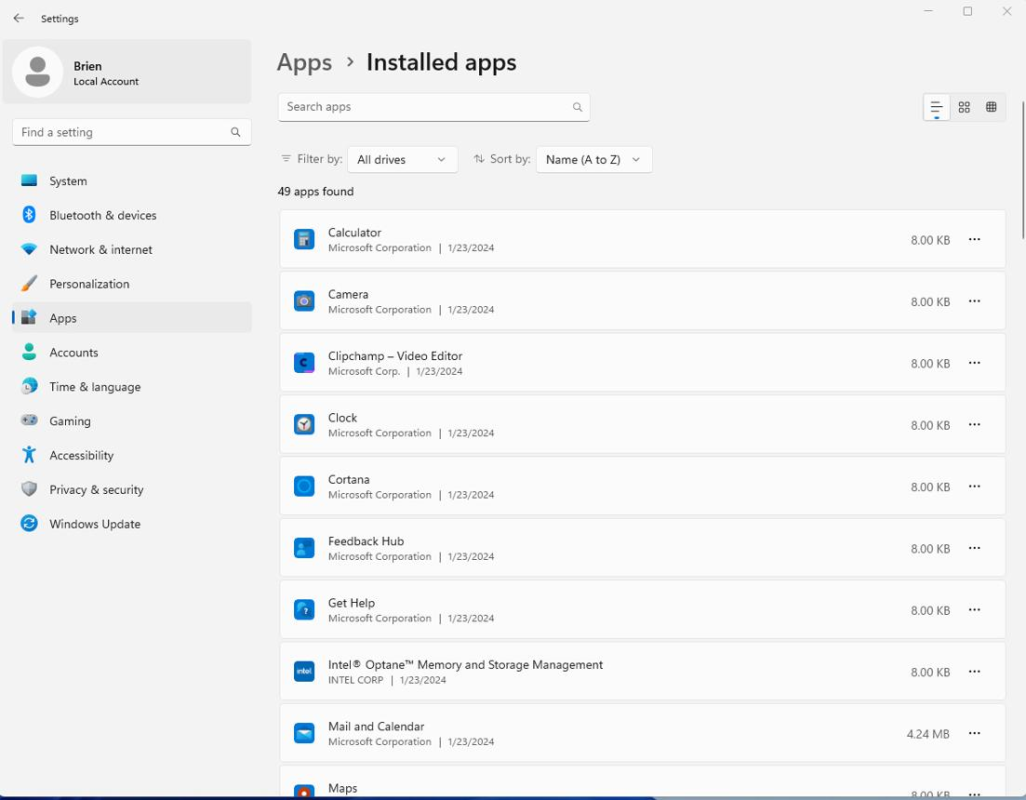
Take a look at the applications installed on your computer.
You may discover programs you haven’t used in months—or even years.
Go to:
Settings → Apps → Installed apps
Review the list.
Remove software you no longer need, particularly large applications consuming valuable storage.
However, don’t uninstall something simply because you don’t recognize its name.
Some programs are hardware drivers or system components.
If you’re uncertain, leave it alone until you can establish what it does.
6. Upgrade From an HDD to an SSD
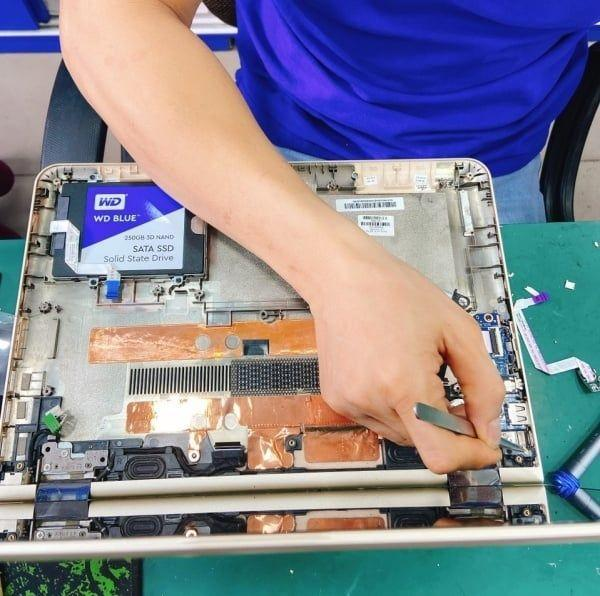
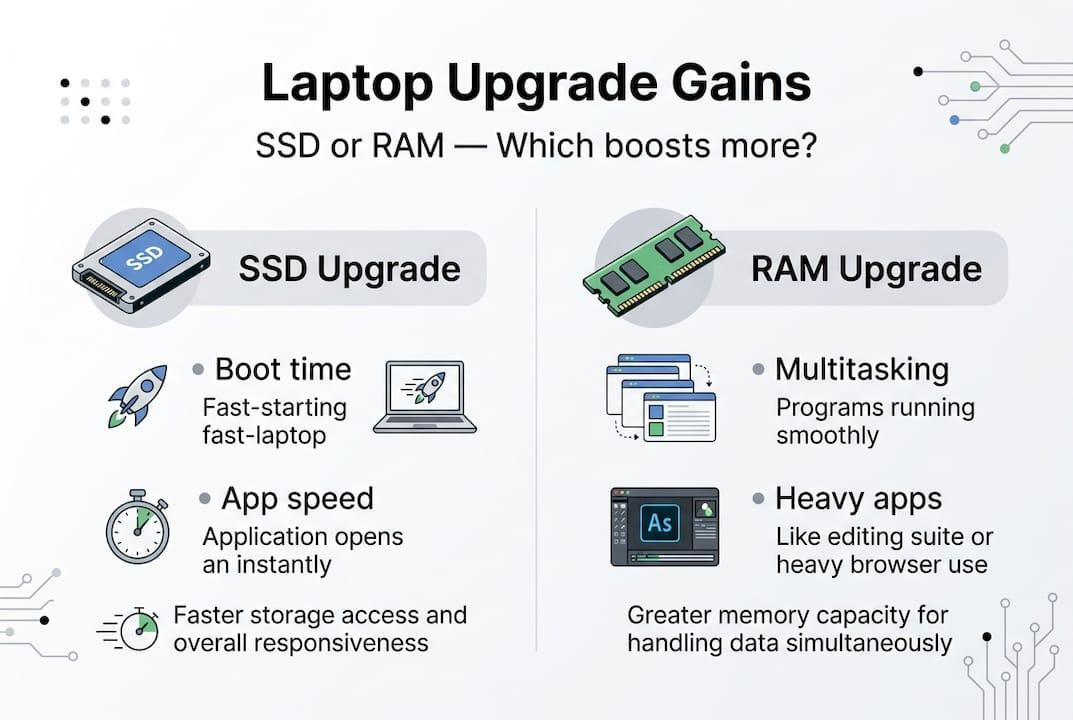
This is one of the most significant upgrades for many older laptops.
If your laptop still uses a traditional mechanical HDD, replacing it with a compatible SSD can dramatically improve everyday responsiveness.
The processor doesn’t necessarily have to change.
The laptop doesn’t necessarily have to change.
The storage technology changes.
An SSD can make Windows feel much more responsive when:
- Starting the computer
- Opening applications
- Searching for files
- Loading documents
- Starting browsers
- Copying data
This is why we encourage people with older laptops to investigate an SSD upgrade before immediately buying another computer.
7. Consider Increasing Your RAM
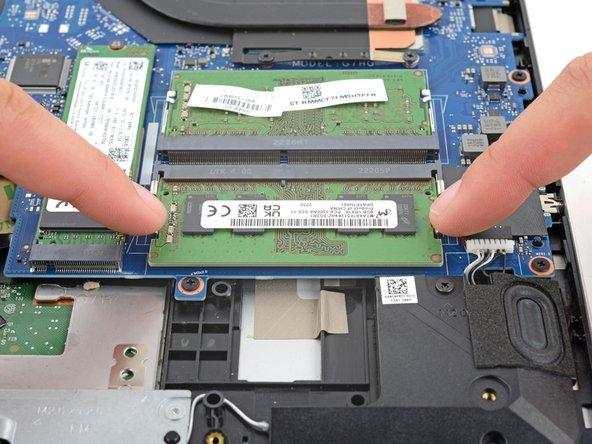
If your laptop struggles when several applications are open, RAM could be part of the problem.
For example, imagine a student working with:
- Chrome
- Microsoft Word
- PDF notes
- Zoom
- An online learning platform
Or an employee working with:
- Excel
- Teams
- Chrome
- Accounting software
If available memory is constantly exhausted, multitasking becomes harder.
For many general users, 8GB can be a reasonable amount of RAM.
Heavier users may benefit from 16GB or more.
But before buying memory, check your laptop’s specifications.
Some laptops allow RAM upgrades while others have soldered memory.
8. Check Whether Your Laptop Is Overheating
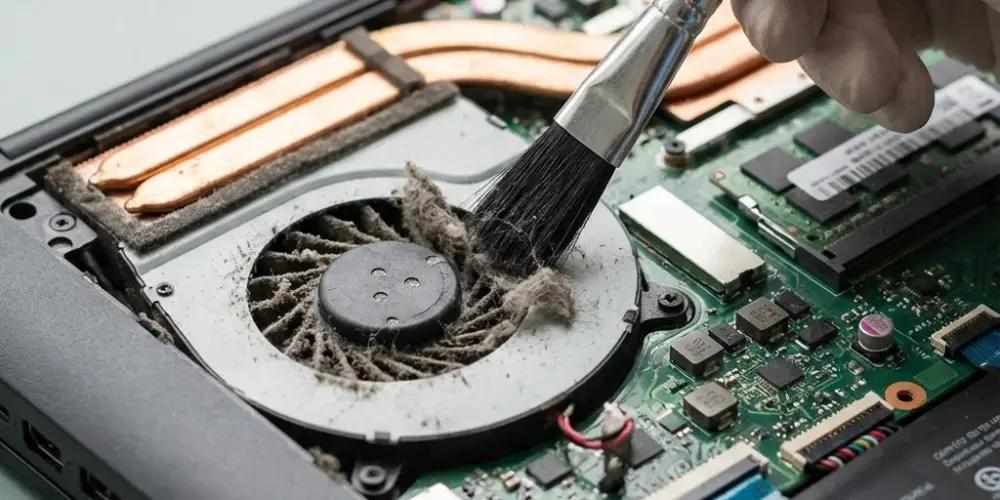
If your laptop becomes extremely hot or the fan is constantly running loudly, don’t ignore it.
Dust can accumulate inside the cooling system.
Air vents can also become blocked.
And if you regularly use your laptop on a bed, blanket or soft surface, airflow may be restricted.
Excessive heat can cause a computer to reduce its performance as it manages temperatures.
If overheating is suspected, have the cooling system inspected and cleaned properly.
A technician can also check the fan and other components involved in cooling.
9. Scan Your Laptop for Malware
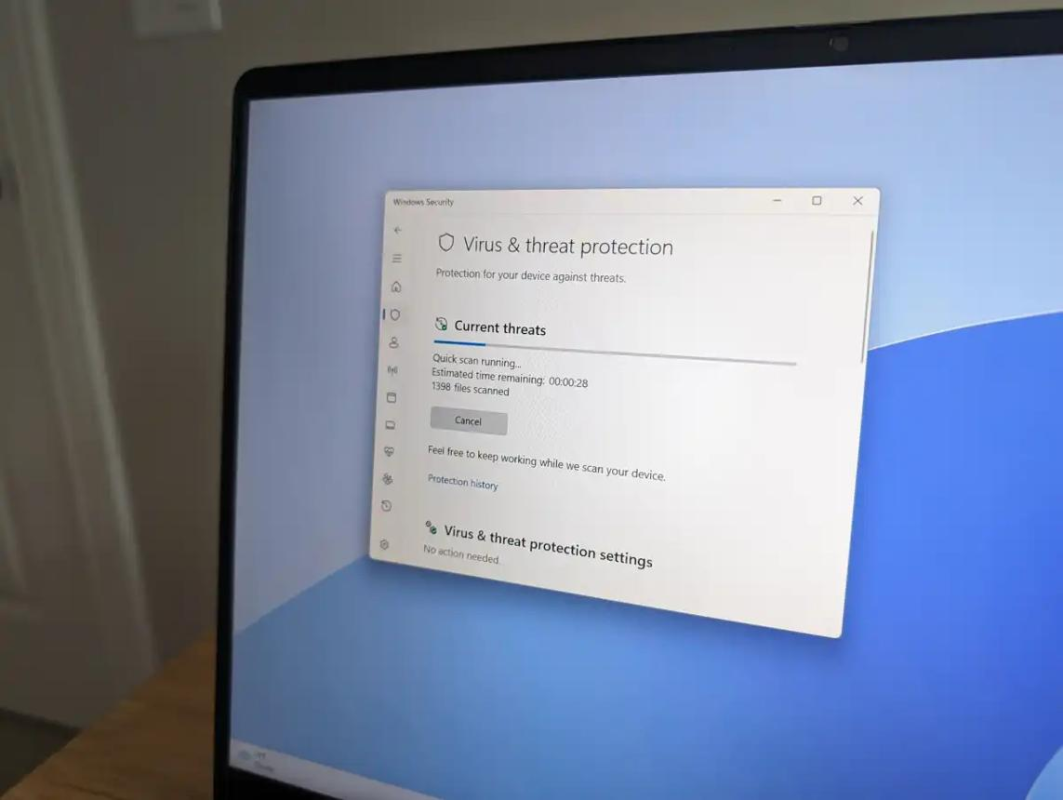
Malware can run in the background without being obvious.
It may consume CPU, memory or network resources.
Use Windows Security to perform an appropriate scan.
Also think about how software gets onto your computer.
Be careful with:
- Pirated applications
- Unknown software
- Unofficial Windows activators
- Suspicious email attachments
- Unknown USB drives
- Untrusted websites
Saving a few minutes by downloading questionable software can create much bigger problems later.
10. Give Your Laptop a Proper Maintenance Check
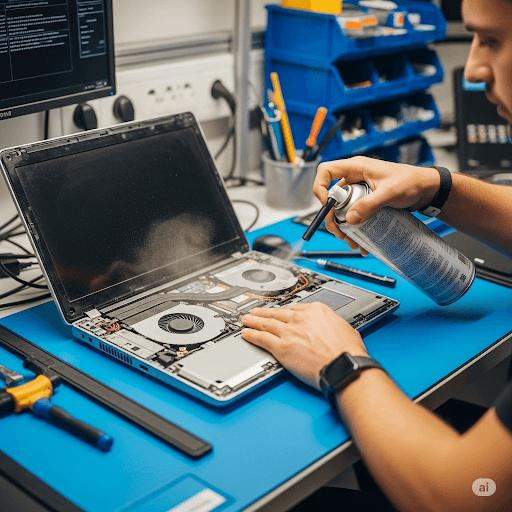
Computers need maintenance just like other equipment.
A laptop that has been used for several years may benefit from a professional assessment.
The technician can check:
- Storage health
- RAM
- Battery condition
- Cooling system
- Fan
- Operating system
- Hardware faults
- Charging system
- General physical condition
This can help distinguish between a laptop that simply needs maintenance and one that genuinely needs replacement.
When Should You Stop Upgrading and Buy Another Laptop?

Upgrading isn’t always the answer.
If the processor is too old for your current work, the motherboard is failing, the laptop cannot support enough RAM, or major components are becoming difficult to replace, a new computer may be more practical.
Your workload also matters.
A student studying law may have very different requirements from an engineering student running CAD software.
A receptionist may need a different machine from a video editor.
A doctor working with clinical applications may have different requirements from someone who primarily uses email and Microsoft Word.
The right laptop is determined by the work you need it to do.
A Slow Laptop Doesn’t Always Need to Be Replaced
The next time your laptop becomes frustratingly slow, don’t immediately start shopping for a replacement.
Start with a diagnosis.
You may discover that the solution is as simple as cleaning up storage.
You may need to disable unnecessary startup applications.
You may need more RAM.
You may need an SSD.
You may need the cooling system cleaned.
Or you may discover that the laptop has genuinely reached the end of its useful life for your current needs.
The important thing is knowing which one it is before spending your money.
Frequently Asked Questions
How can I make my laptop faster without buying a new one?
Start by checking storage, startup applications, RAM usage, malware, overheating and whether the laptop uses an HDD or SSD. Depending on the diagnosis, an SSD, RAM upgrade or maintenance may improve performance.
What is the fastest way to speed up an old laptop?
If an older laptop uses a mechanical HDD, moving to a compatible SSD can make a significant difference in everyday responsiveness. However, the correct solution depends on the laptop’s actual condition.
Does deleting files make a laptop faster?
Freeing storage can help when a drive is nearly full. However, deleting a few files from a computer with plenty of free storage is unlikely to produce a dramatic performance improvement.
Does more RAM make a laptop faster?
Additional RAM can improve multitasking when the existing memory is insufficient. It won’t necessarily solve problems caused by an old HDD, overheating or a failing component.
Is it worth upgrading an old laptop?
It can be, particularly when the laptop has a usable processor and supports affordable upgrades such as RAM or an SSD. A professional assessment can help determine whether upgrading is worthwhile.
How often should a laptop be serviced?
There isn’t one interval that applies to every laptop. Usage, environment and condition matter. Laptops used heavily in dusty environments may require more frequent attention than lightly used machines.
Need Help Making Your Laptop Faster?
Before buying another computer, let Opulent Computer Systems assess the one you already have.
We can help determine whether your laptop needs an SSD upgrade, RAM upgrade, cleaning, repair, software troubleshooting or replacement.
Our goal is simple:
Find the problem. Find the practical solution.
Visit Opulent Computer Systems
Iconic Business Plaza
4th Floor, Shop J7